
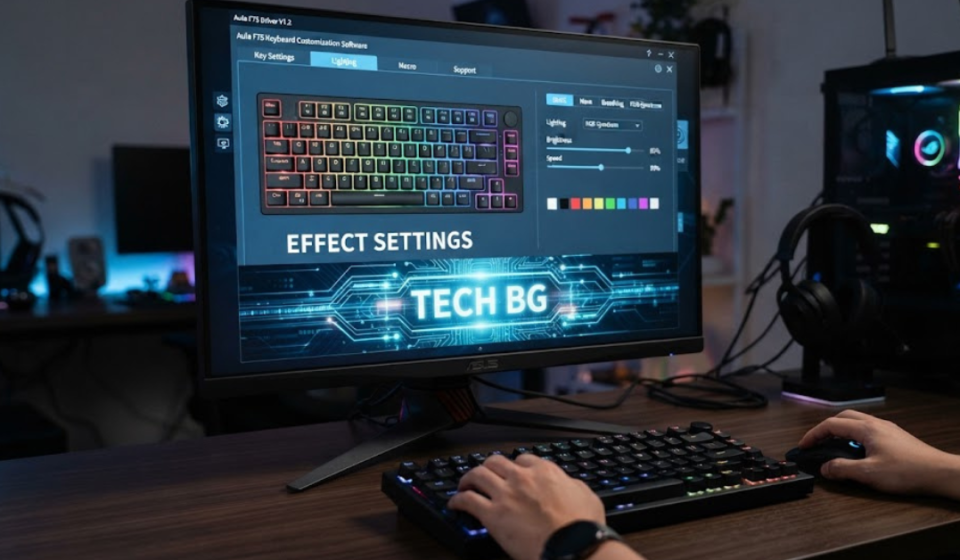

A mechanical keyboard can work perfectly straight out of the box, but the right software can unlock much more than typing. With the AULA F75 software, you can configure your keyboard, customize lighting, remap keys, and manage other settings depending on the exact F75 version you own.
The important part is that AULA F75 software isn’t necessarily identical across every F75 model or edition. AULA currently provides separate driver and firmware downloads for different versions, while some newer variants use browser-based tools. The original AULA F75, F75 Pro, F75 Max, F75HE, and EPOMAKER x AULA F75 should therefore not automatically be treated as the same device from a software perspective.
That distinction can save you a lot of frustration. Installing the wrong driver or firmware simply because the product name says “F75” can lead to detection problems or missing features.
So, let’s look at what the AULA F75 software actually does, how to find the correct version, and what to try when your keyboard isn’t detected.
What Is AULA F75 Software?
AULA F75 software refers primarily to the keyboard driver or configuration utility used to manage compatible AULA F75 models.
The exact features depend on the version of the keyboard and the software supplied for it.
Depending on your model, the software may provide options for:
- Key remapping
- Macro configuration
- RGB lighting
- Keyboard profiles
- Function-key assignments
- Performance-related settings
- Firmware updates
- Other device-specific controls
AULA’s official product page lists dedicated downloads for the F75, including a driver, manual, firmware, and an ISO-ES driver version.
That means the first step isn’t simply downloading “an F75 driver.”
The first step is identifying exactly which F75 you have.
Which AULA F75 Do You Have?
This is probably the most important part of the entire setup process.
The AULA F75 family includes multiple versions and regional editions.
You may encounter names such as:
- AULA F75
- AULA F75 Pro
- AULA F75 Max
- AULA F75HE
- AULA F75 Ultra
- EPOMAKER x AULA F75
- F75 ISO variants
- Different regional keyboard layouts
These aren’t necessarily interchangeable.
AULA’s current download page, for example, separately lists F75 Pro and F75HE, while its product documentation also maintains F75-specific resources.
Before installing anything, check:
- The exact model name printed on the keyboard or packaging.
- The product page where you purchased it.
- The keyboard’s layout or regional edition.
- Whether it is wired, wireless, or a special variant.
- Whether the manufacturer specifically identifies it as F75, F75 Max, F75HE, or another model.
This is especially important with firmware.
Where to Download AULA F75 Software
The safest approach is to start with an official AULA download or support page.
AULA’s current download center provides a driver search system covering keyboards, mice, web drivers, and firmware. It also lists specific software for supported devices.
AULA’s product page for the standard F75 also lists:
- F75 Driver
- F75 Manual
- F75 Firmware
- F75 Driver for ISO-ES
as separate resources.
There are also regional and reseller-specific resources. For example, EPOMAKER maintains software documentation for the EPOMAKER x AULA F75, while AULA Philippines provides an F75 keyboard driver page.
The safest rule is simple:
Match the download to the exact keyboard model and edition before installing it.
AULA F75 Software vs Firmware: What’s the Difference?
This is a common source of confusion.
A driver or configuration application runs on your computer and communicates with the keyboard.
Firmware is software stored on the keyboard itself.
They perform different jobs.
Driver or Configuration Software
The desktop software may allow you to change settings such as:
- Key assignments
- Lighting
- Macros
- Profiles
- Other supported options
Firmware
Firmware controls the keyboard’s internal behavior.
A firmware update can potentially address compatibility problems, bugs, or device-specific improvements, but it also carries more risk than simply installing a desktop configuration program.
AULA therefore lists driver and firmware downloads separately for models where both are available.
Don’t install firmware just because a newer file exists.
First confirm that it is intended for your exact model and hardware revision.
How to Install AULA F75 Software
For the standard Windows driver, the general installation process is straightforward.
Step 1: Identify Your Keyboard
Confirm the exact model and layout.
Don’t rely only on the word “F75.”
Step 2: Download the Correct Driver
Use AULA’s official download resources or the official software page associated with your particular version.
Step 3: Connect the Keyboard
For initial configuration, a wired USB connection is usually the safest approach.
This is particularly useful if the software doesn’t detect the keyboard wirelessly.
Step 4: Install the Application
Extract the downloaded archive if necessary and run the installer.
Follow the on-screen instructions.
Step 5: Launch the Software
After installation, open the AULA configuration application.
Step 6: Check Device Detection
Your keyboard should appear in the software if the driver and model match.
Step 7: Configure Your Keyboard
Once detected, you can explore the settings available for your particular F75.
Why Should You Connect the AULA F75 by USB?
Wireless connectivity is convenient for everyday use, but wired USB is often the better choice when configuring hardware.
A direct cable connection can make communication between the keyboard and configuration software more reliable.
This becomes particularly important when:
- Installing firmware
- Troubleshooting detection
- Changing advanced settings
- Testing whether the driver works
- Recovering from configuration problems
For the original F75, AULA provides a USB Type-C connection alongside Bluetooth and 2.4 GHz wireless connectivity. Its specifications also list a 4000mAh battery and an 80-key, 75% layout.
What Can You Customize With AULA F75 Software?
The available options depend on your F75 edition, but keyboard configuration software typically focuses on customization.
Key Remapping
You may be able to assign different functions to individual keys.
This can be useful for:
- Gaming
- Productivity
- Shortcuts
- Media controls
- Specialized workflows
Macros
Where supported, macros allow you to assign a sequence of actions to a key.
For example, a macro might automate a repetitive keyboard sequence.
Be aware that macro behavior can vary by software and game. Some competitive games may restrict or discourage automated inputs.
RGB Lighting
The F75 supports RGB backlighting, and compatible software can provide additional lighting controls beyond the keyboard’s built-in shortcuts.
Depending on the model, you may be able to adjust:
- Lighting effects
- Brightness
- Colors
- Speed
- Lighting profiles
Profiles
Profiles can be useful if you want different configurations for different situations.
For example:
Profile 1: Everyday typing
Profile 2: Gaming
Profile 3: Editing or productivity
Whether profile management is available and how it works depends on the particular software version.
AULA F75 Software for RGB Lighting
One of the most common reasons people install keyboard software is RGB customization.
The physical keyboard can usually handle basic lighting functions through its onboard controls, but software may provide a more convenient interface.
You can potentially use it to customize:
- Static colors
- Reactive effects
- Wave patterns
- Breathing effects
- Brightness
- Lighting speed
The exact effect library isn’t universal across all F75 variants.
If a lighting option shown in an online tutorial doesn’t appear in your software, that doesn’t necessarily mean the installation is broken. The tutorial may be using a different F75 edition.
AULA F75 Software and Key Remapping
Key remapping is another useful feature.
Suppose you rarely use a particular key and want it to perform another function.
A configuration application can make that change without physically modifying the keyboard.
This can be useful for:
- Custom shortcuts
- Gaming controls
- Media keys
- Productivity workflows
- Alternative layouts
However, always test your changes one at a time.
If you change several keys simultaneously and something stops working, it becomes much harder to determine which setting caused the problem.
Does the AULA F75 Support VIA or QMK?
This is where model-specific research becomes especially important.
You should not assume that every AULA F75 is VIA or QMK compatible.
AULA maintains separate VIA JSON resources for supported products, and its software library specifically lists an AULA F75 Ultra JSON file.
That is different from saying every F75 variant supports VIA.
Some F75 variants use proprietary configuration software instead.
For example, current documentation for the EPOMAKER x AULA F75 describes a Windows driver, while community discussions have historically distinguished that model from VIA/QMK-compatible variants.
So before downloading VIA or a QMK firmware file, confirm the exact model.
AULA F75 Ultra and VIA
The F75 Ultra deserves separate attention because AULA provides a dedicated VIA JSON resource for it.
A VIA-compatible keyboard can offer a different configuration experience from a proprietary desktop driver.
Instead of relying entirely on the manufacturer’s configuration application, VIA can provide browser-based keyboard customization when the hardware and firmware support it.
But again:
F75 does not automatically mean VIA.
Always match the software to the exact version.
AULA F75HE Software
The F75HE is another example of why model identification matters.
AULA’s current support material provides a separate browser-based driver for the F75HE and specifically tells users to verify that the keyboard is labeled F75HE. It also warns users not to use the F75/F75 MAX support page for that model.
That’s a useful warning for anyone searching for “AULA F75 software.”
If your keyboard is an F75HE, don’t simply download the standard F75 driver.
The product family name is similar, but the software path can be different.
AULA F75 Max Software
The F75 Max also has its own driver and firmware resources.
AULA’s U.S. download page lists F75 Max separately from the standard F75, with dedicated driver and firmware links.
This matters because online tutorials can easily mix the standard F75, F75 Max, and F75 Ultra.
If you own an F75 Max, search specifically for:
AULA F75 Max driver
rather than simply downloading the first F75 file you encounter.
EPOMAKER x AULA F75 Software
The EPOMAKER x AULA F75 is another variation worth separating.
EPOMAKER provides a dedicated software page for its F75 model. Its documentation says the online driver runs in a desktop browser and requires Google Chrome or Microsoft Edge; it specifically says Safari and Firefox cannot connect to the keyboard through that tool.
EPOMAKER has also published newer documentation for an ISO-ES version that points users toward its web-based EPOMAKER Hub for keyboard configuration.
So if you own the EPOMAKER-branded version, don’t assume the standard AULA software is automatically the correct choice.
AULA F75 Software Not Detecting Keyboard
One of the most common complaints is simple:
“I installed the driver, but the keyboard isn’t showing up.”
Don’t immediately assume the keyboard is defective.
Try these steps in order.
1. Connect It by USB
Switch from Bluetooth or 2.4 GHz to a direct wired connection.
2. Check the Model
Confirm whether you have:
- F75
- F75 Pro
- F75 Max
- F75 Ultra
- F75HE
- EPOMAKER x AULA F75
3. Check the Keyboard Mode
Some AULA keyboards have different operating-system or connection modes.
For the standard F75, AULA’s driver page specifically reminds users to press Fn + W to switch to Windows mode before using the driver.
4. Try Another USB Port
Avoid troubleshooting through a complicated USB hub initially.
Connect directly to the computer.
5. Restart the Software
Close the configuration application completely and reopen it after connecting the keyboard.
6. Restart Windows
It sounds basic, but driver and USB issues can sometimes clear after a reboot.
7. Check for the Correct Driver
If the software still doesn’t detect the keyboard, revisit the official download page and verify the model.
Installing the wrong software is one of the easiest mistakes to make with a product family containing several similar names.
AULA F75 Software Not Working After Installation
If the software installs but doesn’t behave correctly, work through the problem systematically.
Check:
- Keyboard model
- Windows version
- USB connection
- Keyboard mode
- Driver version
- Firmware version
- Whether another keyboard utility is interfering
- Whether the application has permission to communicate with the device
Don’t immediately reinstall Windows or flash new firmware.
Start with the simplest explanation.
Should You Update AULA F75 Firmware?
Firmware updates can be useful, but they shouldn’t be treated like ordinary application updates.
AULA currently provides firmware separately for models where firmware downloads are available.
Before updating, confirm:
- The firmware matches your exact model.
- The keyboard revision is compatible.
- The update addresses a problem you actually have or provides a useful improvement.
- The keyboard is connected reliably.
- The computer won’t unexpectedly shut down during the update.
If you’re unsure, don’t guess.
A wrong firmware file can create a much bigger problem than an outdated configuration application.
AULA F75 Firmware vs Driver: Quick Comparison
| Feature | Driver/Software | Firmware |
| Runs on computer | Yes | No |
| Stored on keyboard | Usually no | Yes |
| Key customization | Often | Underlying support |
| RGB configuration | Often | Supports device behavior |
| Updates Windows software | Yes | No |
| Changes keyboard’s internal software | No | Yes |
| Risk of incorrect installation | Generally lower | Potentially higher |
Think of the driver as the translator between your computer and keyboard, while firmware is part of the keyboard’s own internal operating software.
AULA F75 Software on Windows
Windows is the main environment for many AULA configuration utilities.
AULA’s official downloads currently provide Windows drivers for several keyboard models, including the F75 Pro.
For the standard F75, AULA also provides a Windows driver download through its product resources.
If you’re using Windows, the basic workflow is:
Download → Install → Connect USB → Select correct keyboard mode → Open software → Configure
If you’re using a different operating system, compatibility needs to be checked against the exact F75 version.
What About Mac and Linux?
Don’t assume that a Windows driver will work on macOS or Linux.
The manufacturer’s standard F75 driver documentation is primarily presented as Windows software, while certain newer or different AULA models have web-based or alternative configuration solutions.
There are also independent projects attempting to provide cross-platform support for specific AULA keyboards. For example, an open-source GitHub project exists for the F75 Max and describes support for macOS, Linux, and Android. However, that is a third-party project and should not be confused with AULA’s official driver.
If you’re using macOS or Linux, verify compatibility before installing unofficial tools.
Is Third-Party AULA F75 Software Safe?
You may encounter drivers hosted on:
- GitHub
- File-sharing sites
- Forums
- Regional stores
- Keyboard communities
Some can be legitimate and useful.
But the safest starting point remains the manufacturer’s official software.
If you need a third-party solution, check:
- Who created it
- Whether the source code is available
- How recently it was updated
- What permissions it requests
- Whether other users have independently reviewed it
- Whether it is designed for your exact F75 version
Never install a random executable simply because its filename contains “F75 Driver.”
How to Avoid the Wrong AULA F75 Driver
This deserves its own checklist because the F75 naming system can be confusing.
Before clicking Download, compare:
Keyboard label → Product page → Driver name → Layout/edition → Firmware model
All five should line up.
For example, AULA’s current download center lists F75 Pro separately from F75HE, while its product pages provide standard F75 resources.
If they don’t match, stop and investigate before installing anything.
Frequently Asked Questions
What is AULA F75 software?
AULA F75 software is the driver or configuration utility used with compatible AULA F75 keyboards. Depending on the model, it can provide key remapping, RGB customization, macros, profiles, and other device settings.
Where can I download AULA F75 software?
Start with AULA’s official download center or the official product page for your exact keyboard. AULA currently provides separate resources for F75-related models and editions.
Is the AULA F75 driver free?
The manufacturer’s driver downloads are provided as software resources for the keyboard. You should download them from the official AULA or authorized product support page rather than paying a third party for a driver.
Does AULA F75 software work on Windows?
Yes, Windows drivers are provided for the standard F75 and several related F75 models. The exact software depends on the keyboard version.
Why isn’t my AULA F75 detected by the software?
Check the keyboard model, connect it by USB, verify the correct operating mode, try another USB port, restart the application, and make sure you installed the driver for the exact F75 edition.
For the standard F75, AULA specifically instructs users to switch to Windows mode with Fn + W before using its driver.
Does the AULA F75 support VIA?
It depends on the specific F75 version. AULA provides a VIA JSON resource for the F75 Ultra, but that does not establish VIA compatibility for every F75 model.
Does the F75HE use the same software as the F75?
Not necessarily. AULA provides a separate browser-based driver for the F75HE and specifically tells users to verify the exact model before connecting it.
Can I use the F75 Max driver on a regular F75?
You shouldn’t assume that you can. AULA lists the F75 and F75 Max as separate products with separate driver and firmware resources. Use the software specifically identified for your keyboard.
Can I customize RGB without AULA software?
Basic lighting controls can often be accessed through the keyboard’s onboard functions, depending on the model. Software generally provides more detailed customization.
Do I need firmware updates to use AULA F75 software?
Not necessarily. A driver and firmware serve different purposes. If your keyboard is working correctly, don’t install firmware simply because a newer file exists. First verify that the firmware applies to your exact model.
Can I use third-party software with the AULA F75?
Some third-party tools and open-source projects exist, but compatibility varies. For the safest setup, start with the official AULA software and only consider alternatives after verifying that they support your exact keyboard.
Conclusion: Getting the Most From AULA F75 Software
The AULA F75 software can turn an already capable mechanical keyboard into a much more personalized setup. Key remapping, RGB control, macros, profiles, and other configuration options can make a real difference, especially if you use the keyboard for both gaming and everyday work.
But the biggest lesson is simple: not every F75 uses exactly the same software.
The standard F75, F75 Pro, F75 Max, F75HE, F75 Ultra, and EPOMAKER x AULA F75 can have different driver, firmware, or configuration requirements. AULA’s current support pages reflect those distinctions, including separate downloads and web-based tools for certain models.
So before installing anything, identify the exact model printed on your keyboard and match it with the manufacturer’s software.
Once you’ve got the correct driver, connect the keyboard by USB, confirm that the software detects it, and then customize one setting at a time.
That approach is safer, easier to troubleshoot, and much more likely to give you the smooth AULA F75 setup you’re looking for.